Learning how to download music on Apple Music takes about two taps. The part that decides whether those downloads still play next month sits somewhere else entirely. Apple Music does not hand you audio files. It keeps a licensed copy inside the app, tied to your Apple Account and to an active subscription, which is why a download can stop working after a plan lapses, a library setting changes, or the phone runs out of space. This guide covers the taps, the settings that control quality and data use, the usual reasons downloads fail, and how to keep the subscription behind them affordable.
What an Apple Music Download Actually Saves
When you tap download, Apple Music copies the catalog version of that track into the app's own storage. The copy is wrapped in FairPlay, Apple's DRM layer, and it stays playable only while the app is signed into the same Apple Account with an active subscription. Nothing about the download changes ownership. You are storing a licensed copy for offline playback, not buying a file.
That distinction explains most of the surprises people hit later:
- The download does not appear in the Files app and cannot be moved to an SD card, a USB drive, or another music player.
- It plays inside Apple Music only. Third-party players cannot open it.
- Signing out of the Apple Account, erasing the device, or deleting the app removes access to it, even though the song stays in your library and can be downloaded again.
- A lapsed subscription turns every downloaded track into an entry that will not play until you resubscribe.
So the useful question is not only where the download button is. It is whether your account, plan, and storage will still support that download in a month.
How to Download Music on Apple Music Step by Step
On iPhone and iPad the sequence is short, but the order matters. A song playing from a catalog page is not the same thing as a song in your library, and the download control can behave differently in each place.
- Add the track to your library first. Open the song, album, or playlist, tap the more button, and choose Add to Library. Using the download control directly from a catalog page usually adds the item to your library anyway, and starting from the library keeps everything in one place you can find later.
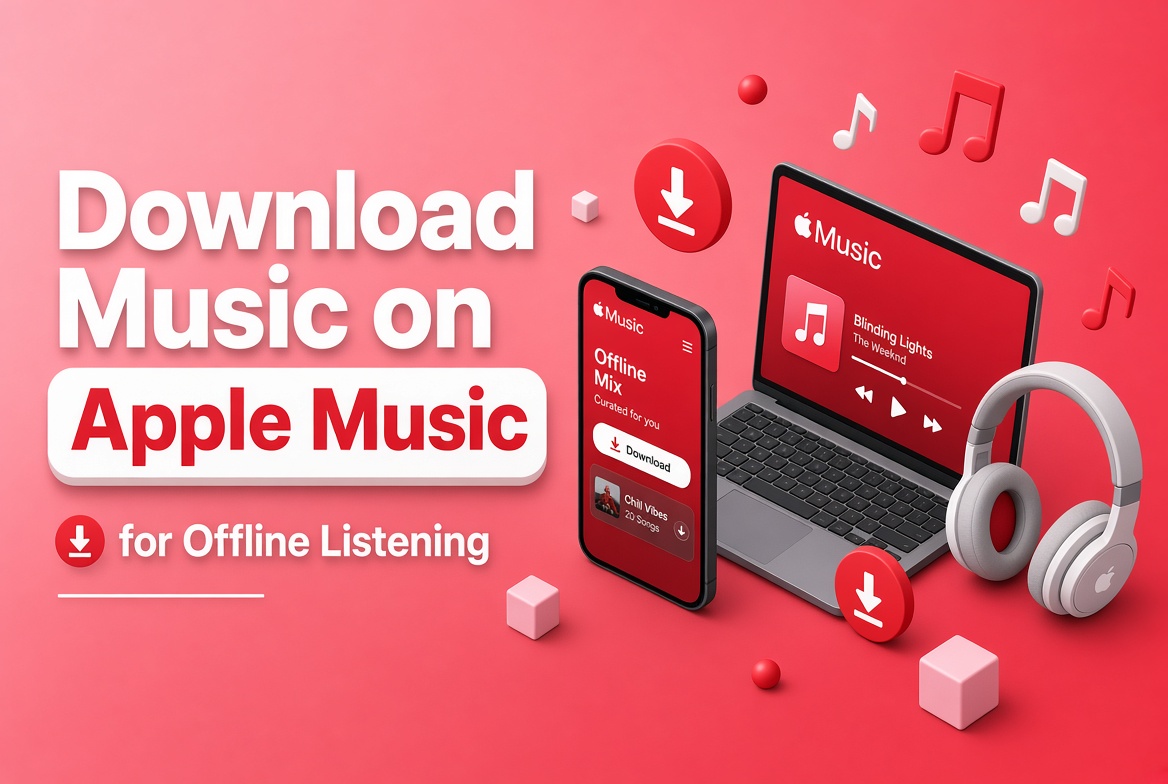
- Tap the download button. On an album or playlist page it sits near the play control; on a single song it appears in the same row as the title. The icon is an arrow pointing down into a line.
- Watch progress in the Downloaded section. In the Music app, open Library, then Downloaded, to see items in progress and items already stored.
- Test one track offline. Turn on Airplane Mode, play a downloaded song, and confirm it starts. A track that buffers in Airplane Mode was never fully stored.
- Download playlists rather than single songs when you want a fixed set for a commute or a flight. Downloading a playlist pulls every track it contains, and later additions can download automatically when that setting is on.
On a Mac the same logic applies inside the Music app: add to library, click the download icon next to the item, then check the Downloaded filter in the sidebar. The Android and Windows versions of Apple Music offer a download toggle too, with the same account requirement.
| Step | Required or optional | What it prevents |
|---|---|---|
| Add to library first | Recommended | A download you cannot find again later |
| Download the playlist instead of single tracks | Optional, useful for fixed listening sets | Gaps in your offline library when you travel |
| Test one track in Airplane Mode | Required before travel | Discovering a half-finished download at the airport |
| Turn on Automatic Downloads | Optional | Repeating the same download on every device |
| Set audio quality before downloading | Optional, depends on storage | Rebuilding a large library later |
Download Settings That Change What You Get
Three settings decide what actually lands on the device, and all of them live under Settings, then Music, on iOS.
Audio Quality sets the download format. Standard downloads use AAC, which is compact. Turning on Download in Lossless or Dolby Atmos stores a much larger file, and the size difference is not marginal: a lossless version of an album can occupy several times the space of the standard version. If storage is tight, keep lossless for the albums you actually sit and listen to and leave the rest at standard quality.
Cellular Data controls whether downloads can run on a mobile connection. With it off, a download waits until the phone reaches Wi-Fi. That is the right default for most people, and it explains the queue that seems frozen on a train.
Automatic Downloads pushes library additions to every device signed into the account. It saves taps and quietly consumes storage on each of them.
Two more settings matter when downloads vanish. Optimize Storage removes music you have not played in a while when the device needs space, so a downloaded album can be deleted without you touching it. Sync Library, when switched off, removes iCloud Music Library content from the device. Neither setting warns you in a way most people notice, which is why downloads sometimes seem to evaporate overnight.
How to Find Downloaded Music and Manage the Space It Uses
Everything stored for offline listening sits behind Library, then Downloaded in the Music app. That filter is the quickest way to see what is really on the device, as opposed to what is merely in your library.
To free space without deleting a whole album, tap the download icon again on the item and choose Remove Download. The song stays in your library and streams again when you have a connection. Working playlist by playlist is far less disruptive than clearing the app's data in system settings, which removes everything and forces a full re-download.
For the real numbers, open Settings, then General, then iPhone Storage, then Music. The figure there is the app's total footprint, including downloads. On a device that is nearly full, iOS may refuse new downloads or fail them partway, which looks like a bug and is usually just no free space. If you plan to keep a large lossless library offline, leave a buffer rather than filling the phone to the last gigabyte.
Why Downloaded Songs Disappear or Refuse to Download
There are a handful of causes, and each one points to a different fix.
| What you see | Likely cause | What to check |
|---|---|---|
| Downloads gone after a while | Optimize Storage removed unplayed music | Settings, Music, Optimize Storage |
| Track shows a download arrow again | Sync Library was switched off or the account changed | Settings, Music, and the signed-in Apple Account |
| Download stalls at zero progress | Cellular downloads disabled or storage full | Settings, Music, Cellular Data; iPhone Storage |
| Song stops playing after months offline | Subscription lapsed or the catalog license ended | Your subscription status in account settings |
| Download never completes on a second device | Not enough free space, or Automatic Downloads off | The storage figure and the Automatic Downloads setting |
| A family member cannot see your downloads | Downloads belong to each Apple Account | Each member downloads under their own account |
Two of these deserve more than a one-line fix. A subscription that lapses does not delete your library, but it does suspend playback of every downloaded track until you resubscribe, and re-downloading afterwards works normally. A track pulled from the Apple Music catalog is different: the license is gone, the download will not play, and nothing you change on the device brings it back. That is the clearest proof that a download is a rental with an offline cache, not a file you own.
Keeping Downloads Without Overpaying for the Subscription
Since downloads live and die with the subscription, the plan is the part worth optimizing. Apple sells Apple Music as an individual plan, a student plan that requires verification, and a family plan for up to six people in one household, and it also bundles the service inside Apple One. Prices and trial lengths have changed more than once, so confirm the current figure in your account settings rather than trusting a screenshot from last year.
The tradeoffs are concrete. A student plan is the cheapest legitimate route when you can verify enrollment, but it needs periodic re-verification. A family plan lowers the cost per person, though one organizer holds the payment method and the plan is meant for people in the same household, not for strangers splitting a bill. Bundles can be good value when you already use the other services inside them, and poor value when you do not.
That is where shared subscription services come in. Platforms such as DolOffer sell access to subscription services at a lower monthly cost by sharing plan capacity, with delivery handled automatically and an access reset if something fails. The saving is real, and so is the tradeoff: you are usually not the account owner, so your downloads depend on the plan staying active, and the arrangement has to be honest about what it provides. Before paying, ask three questions. Do you get your own profile or a shared account, what happens to your library if the plan ends, and what the refund window actually covers.
Choose the Plan Before You Download the Library
Tell us what you actually need and we will tell you what fits. Send the service you want, the number of devices you listen on, whether you need your own account or a shared one, and roughly how much of your library you plan to keep downloaded. We will confirm availability, delivery time, the 24-hour money-back guarantee, and what happens to your access if you cancel, all before you pay. Email [email protected] or open the 24/7 live chat on doloffer.com and ask. If you are still deciding between a solo plan and a family plan, say so, because that comparison usually changes the monthly cost more than any other choice.
FAQ
Do downloads on Apple Music use mobile data?
Once a song is fully downloaded it plays from the device without a connection. The download itself uses data unless you are on Wi-Fi, and if Cellular Data is switched off in Settings, Music, the transfer waits for a Wi-Fi network. A useful habit is to queue the playlist the night before rather than on the way out.
Why did my downloaded Apple Music songs disappear?
Usually one of three settings or events: Optimize Storage removed music you had not played recently to free space, Sync Library was switched off, or the subscription lapsed. Check Settings, Music first, then your subscription status. The songs normally remain in your library and can be downloaded again.
Can I move Apple Music downloads to another device or player?
No. Downloads are stored inside the Apple Music app in a DRM-protected format, so they do not appear as files and will not open in another player. To listen offline on a second device, sign in with the same Apple Account and download there, storage permitting.
Do downloads still work if I cancel Apple Music?
They stop playing until you resubscribe, though they stay visible in your library. This is why a purchased file and a subscription download are not interchangeable: the first belongs to you, the second follows the plan. If a track matters permanently, buy it rather than download it.