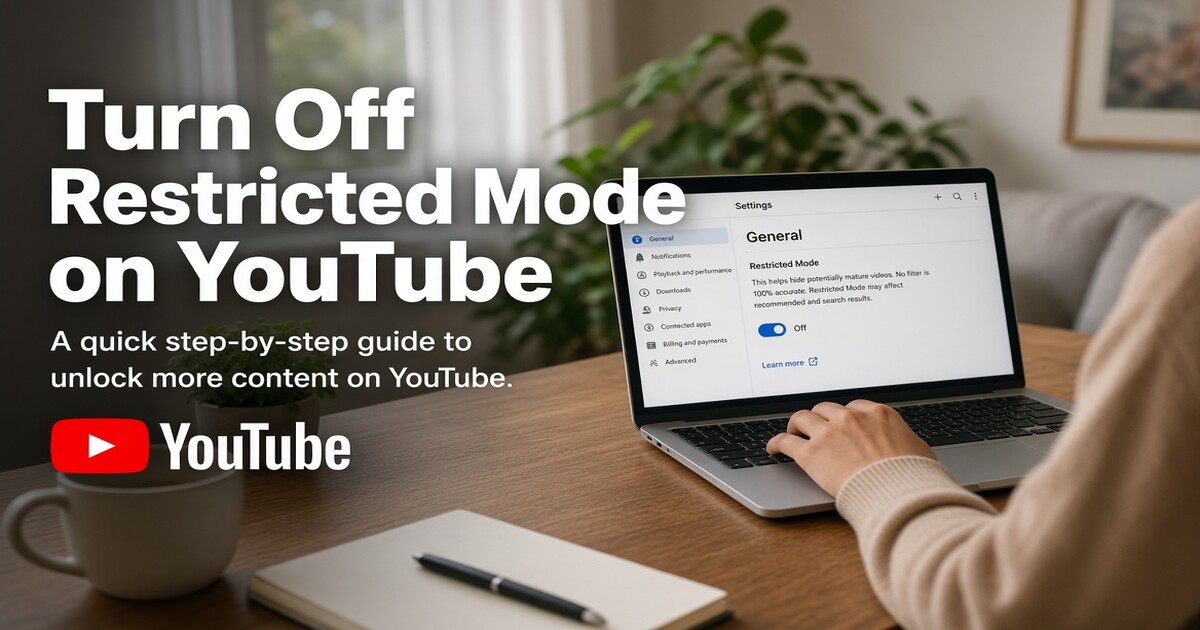
Turning off Restricted Mode on YouTube takes seconds when the switch belongs to you: sign in, open your account settings, and set Restricted Mode to off. When the toggle is greyed out, or flips back on after a refresh, something above your account is enforcing it, usually a school or workplace network, a work or school Google account, or a managed device. Clearing your cache will not change that, and most advice online stops one step too early. This guide covers the account route first, then how to work out which lock you are facing and who can actually remove it.
What Restricted Mode Filters, and What It Leaves Alone
Restricted Mode is a viewing filter that YouTube applies on the viewer's side of the screen. It does not relabel a video as mature for everyone. It uses signals such as community flags, metadata, and other content and account signals to decide what to hide from the person watching, which is why the same video can play normally on your laptop and be missing on a school Chromebook in the same room.
Two consequences follow. First, the filter over-reaches sometimes. Health explainers, news footage, and education channels that touch on violence, drugs, or sex education can disappear, because the signal that hides a music video also hides a lecture quoting it. Second, the filter is not a safety guarantee. It reduces exposure to content that YouTube's systems treat as mature; it does not vet every upload, and it says nothing about what the same browser can reach outside YouTube.
| What Restricted Mode does | What it does not do |
|---|---|
| Hides videos its signals treat as mature from that viewer | Remove region blocks, uploader restrictions, or age gates on individual videos |
| Applies across the YouTube site and apps that use your account or your network's policy | Filter search results outside YouTube, app stores, or other streaming services |
| Can be enforced by a network administrator or a Google Workspace administrator | Require a password, or replace parent-managed profiles and YouTube Kids |
| Is saved to the account when you are signed in, and remembered on the browser where you set it | Override a device enrolled in school or employer management |
How to Turn Off Restricted Mode on YouTube in Your Account
The account setting is the right first stop because it is the only layer you fully control. Sign in before you change anything. If you are signed out, you are looking at a network or device policy rather than your own preference.
On a desktop browser
- Open youtube.com and sign in to your Google account.
- Select your profile picture, then Settings.
- Open General and find Restricted Mode.
- Switch it off, then reload the page to confirm the change held.
If the switch will not move, your account is not the controller, and the next section explains which policy is holding it.
In the mobile app
- Open the YouTube app and tap your profile picture.
- Tap Settings, then General.
- Turn Restricted Mode off and reopen a video to confirm.
The app usually shows the same state as the web version because both read the account setting. A toggle that resets on its own points to an admin policy or a managed device profile.
On a TV, console, or streaming stick
YouTube apps on televisions and consoles have no independent Restricted Mode switch. Signed in, the app follows your account setting. Signed out, it follows whatever the network enforces, which is why a hotel or campus TV can stay filtered even after you fix your phone. Signing in with your own account is the usual fix; on a shared device, sign out when you finish.
Why the Toggle Is Greyed Out
When the switch refuses to move, YouTube shows a short note saying the setting is locked and usually names a network administrator. Behind that message sit several different owners, and only one of them is you.
| Who controls it | What you notice | Who can turn it off |
|---|---|---|
| Your Google account | The toggle moves and stays off across your own devices | You |
| A network you are connected to | Greyed-out toggle and a lock note, still restricted in a private window while signed out | The network administrator |
| A work or school Google account | Only that account is filtered, while a personal account on the same device is fine | The Google Workspace administrator |
| A managed laptop, phone, or tablet | Only the managed device is affected, other devices on the same account are clean | The device administrator |
Networks enforce the filter at the network level, through the way traffic is routed or filtered before it reaches your browser. Workspace administrators apply it to an organizational unit from the Admin console's YouTube service settings, so every signed-in user in that group inherits it. Device management profiles, common on school Chromebooks and employer-issued phones, enforce it on the hardware itself. None of these can be switched off from the viewer's side, and none of them are a browser fault.
How to Tell Which Lock You Are Facing
Run three short tests and note the results before you contact anyone. The combination identifies the owner faster than any single check.
- Open a private or incognito window, stay signed out, and load youtube.com. Still restricted means the network or the device is enforcing the filter. Clean means your account carries it.
- Sign in with a personal Google account on the same device and network. If that account is clean while the work or school account stays restricted, an admin policy is attached to the second account.
- Try the same account on a phone hotspot or a home network. If the restriction clears, the original network is the controller.
- If all three look normal but one device misbehaves, check whether that device was issued by a school or employer, or has a management profile installed.
Write the result down in plain terms. "Signed out on the campus network, still locked, personal account fine on the same laptop" gets a real answer from a help desk. "It does not work" gets a script.
What to Do When a School, Employer, or ISP Owns the Setting
You cannot toggle a policy away, but you can usually negotiate a narrower one.
Ask with specifics: the device, the network, the time, what you need access to, and why. A class that requires a documentary channel or a client call that needs a demo video is a stronger case than a general request to unblock everything. Ask for the smallest change that solves it. An exception for one channel, or a policy applied only to staff rather than students, is often easier to approve than turning the filter off network-wide.
If you administer the Google Workspace tenant yourself, the YouTube service settings in the Admin console let you apply or lift Restricted Mode for an organizational unit. Test on a small unit first, because the change applies to every user inside it at once.
For your own viewing, use a network you control. Keeping personal accounts and personal devices off a managed network is simpler than arguing with it, and it keeps your work machine inside the boundaries your employer set.
A virtual private network is worth mentioning because it is the first thing many guides suggest. A VPN changes the network YouTube sees, so a restriction enforced by the network may stop applying. It does nothing for a policy tied to your account or a device management profile, it can break internal school or work resources, and routing around an acceptable-use policy you agreed to can carry consequences. Treat it as a decision for the network owner, not a fix.
Restricted Mode vs SafeSearch, Age Checks, and Supervised Accounts
Four different controls get called "the YouTube filter," and confusing them sends people in circles.
SafeSearch is Google Search's filter for search results, images, and videos surfaced in search. It is separate from YouTube and can also be enforced by a network. Restricted Mode is YouTube's own viewing filter and does not touch the rest of the web.
Age-restricted videos are a third thing. They require a signed-in account with confirmed age, regardless of your Restricted Mode setting. Turning the filter off does not bypass that gate, and it does not restore videos the uploader restricted or that are blocked in your country.
Supervised accounts and YouTube Kids are the fourth. These are parent-managed profiles with content settings a child cannot change without the parent's approval. If a parent configured a supervised profile, hunting for the Restricted Mode toggle will not help, because the control lives in the family settings rather than in the viewer's own account.
One practical note ties them together: SafeSearch and Restricted Mode can both be enforced at the network or admin level, which is why a single organization sometimes appears to control two unrelated settings at once.
Fixes That Do Not Work, and What to Do Instead
Most of the standard troubleshooting list addresses problems you do not have.
Clearing cache and cookies deletes stored data in your browser. It does nothing to a network or admin policy, so the toggle stays greyed out. Reinstalling the app produces the same result for the same reason. Switching browsers only helps when the setting was saved to one browser profile rather than to your account, which the private-window test above already rules out.
Incognito mode is a diagnostic tool, not a fix. Enforcement follows the network and the device, so a private window often shows the restriction intact. Signing out and back in clears a stale account state and little else.
The reliable approach is the one this guide has followed: identify the layer that owns the switch, then act there. Change your own account setting if you control it, ask the administrator if you do not, and move to a network you own when the policy is not yours to change.
When the Problem Is the Subscription, Not the Filter
Restricted Mode is free to change and nothing you buy removes a policy set by a school or employer. If you landed on this page because ads break up long videos or playback stops when you switch apps, that is a subscription question rather than a filter question. DolOffer provides shared subscriptions to services such as YouTube Premium, Netflix, and Spotify, with real-time delivery, one-click password reset, SSL-encrypted payment, and a 24-hour money-back guarantee. Tell the 24/7 support team at doloffer.com which devices you watch on and which features you actually need, and they will confirm availability and terms before you pay.
FAQ
Why does Restricted Mode turn itself back on?
Because the switch you moved is not the one in charge. A setting that returns after a refresh, a sign-out, or a network change is being re-applied by a network policy, a Google Workspace admin policy, or a device management profile. Run the private-window test while signed out. If the restriction survives that, it lives above your account and no account change will hold.
Does turning off Restricted Mode apply to every device?
Only where your account is the controller. Signed in, the setting follows the account, so your phone and laptop agree. A browser where you set it while signed out keeps its own copy. Any device on an enforcing network, or enrolled in school or employer management, can override your choice regardless of what your account says.
Can a VPN get around Restricted Mode on a school or work network?
It can change the network YouTube sees, so a restriction enforced at the network level may stop applying. It will not affect an admin policy tied to your account or a management profile on the device, it can break internal resources, and it may violate the acceptable-use policy you signed. Ask the network owner before routing around it.
Is Restricted Mode the same as YouTube Kids?
No. Restricted Mode filters what an ordinary viewer sees, and anyone at the keyboard can switch it off unless a network or administrator enforces it. YouTube Kids is a separate app with its own library, and supervised accounts are parent-managed profiles whose content settings a child cannot change. The controls sit in different places and solve different problems.
Why is a video still missing after I turned Restricted Mode off?
Because the filter was not the only reason videos disappear. Age-restricted videos still require a signed-in account with confirmed age, uploaders can restrict their own content, and some videos are blocked by country or removed entirely. Test the video in a personal account on an unrestricted network before you conclude the setting failed.