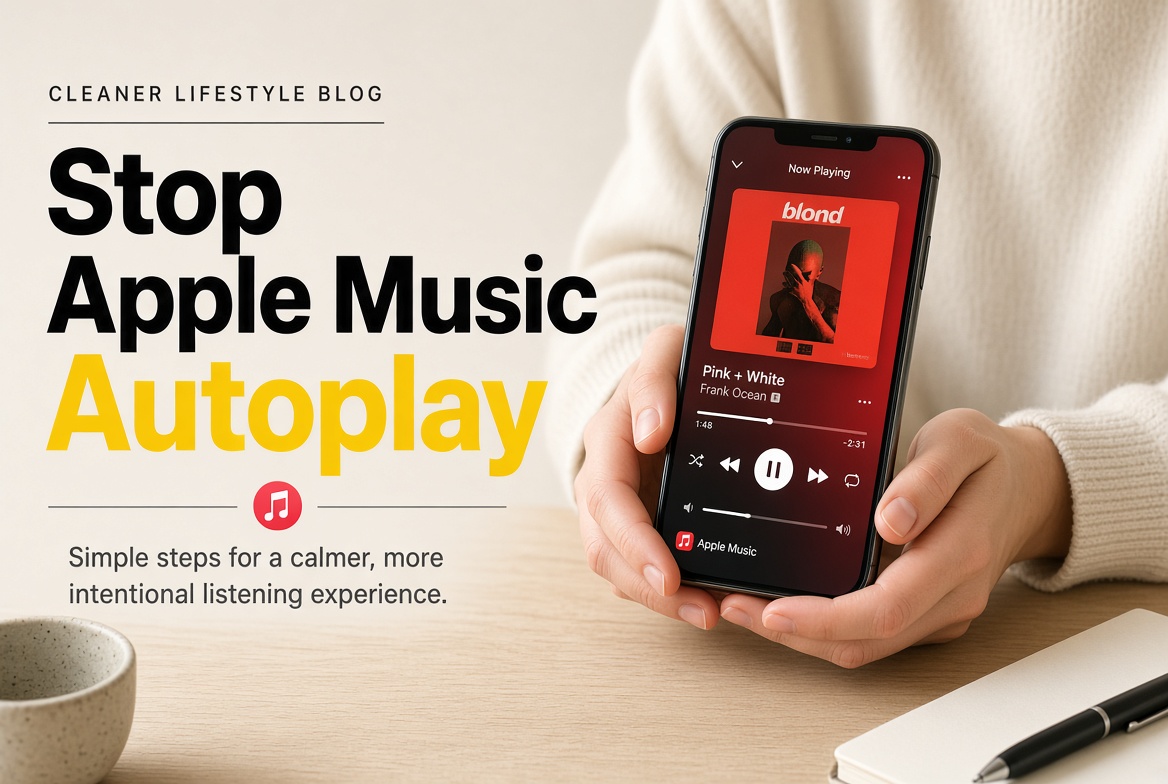
Apple Music is doing what it was told, which is why it can feel like it starts on its own. Two different systems can send it into playback: the Autoplay control that extends your queue with similar songs once your last track ends, and a play command that arrives from your car, your headphones, a Shortcut automation, or an audio session resuming after a call. If you want to stop Apple Music from auto-playing, deal with both layers. Switching off the queue setting alone leaves the outside triggers untouched, and that is why one toggle sometimes appears to change nothing.
Why Apple Music Starts Playing on Its Own
Playback begins from one of two families of trigger, and they fail in different ways. One lives inside the app and decides what happens after your music ends. The other arrives from outside the app entirely. Diagnosing the wrong family is the most common reason people give up and assume the app is broken.
The queue extends itself after your last track
Apple Music can add similar songs to the end of whatever you play. Start an album and, once the final track finishes, the app keeps going with material it chose rather than material you chose. That is Autoplay, and it is the usual explanation for an album you picked turning into music you did not. It does not explain a phone that starts playing in a bag, because nothing was playing for the app to extend.
Your car or headphones send the play command
Bluetooth carries audio and control signals on separate channels. The control channel is what lets a steering wheel button pause your phone or an earbud skip a track. The same channel means a head unit can send a play command the moment it connects, and iOS answers by resuming the last audio app it used. Many cars do this deliberately so the listening experience continues where it stopped. Headphones with automatic ear detection behave similarly: playback pauses when you remove an earbud and resumes when you put it back in.
A phone call interrupts playback, and when the call ends the audio session resumes. That is why music can come back to life while you are still parked.
| What you notice | Most likely cause | First thing to check |
|---|---|---|
| An album ends, then unfamiliar songs start | Autoplay is on | The infinity control in the queue |
| Music starts the moment you start the car | The head unit sends play on connection | The car's auto play or last source setting |
| Music returns after a call or a Siri request | The interrupted audio session resumes | Whether the car or the phone resumed it |
| Music restarts when an earbud goes back in | Automatic Ear Detection | Bluetooth settings for the headphones |
| Music plays at 2 a.m. with nobody touching the phone | Queue kept going, with Autoplay on | A clock timer set to Stop Playing |
| Music starts after the phone leaves your pocket | Lock Screen controls or a stuck cable button | Lock Screen playback controls |
Turn Off Autoplay in the Apple Music Queue
This is the fix for music that continues after the track you chose. It takes under a minute.
- Open Apple Music and start any song.
- On the Now Playing screen, tap the queue control at the bottom right to open the Up Next list.
- Look for the Autoplay row near the end of the list. It carries an infinity symbol and a toggle.
- Switch Autoplay off.
- Test it by playing the last track of an album and letting it finish. Silence means the setting held.
On a Mac, open the Music app, show the Up Next list from the player controls at the top of the window, and switch Autoplay off there. Plan on setting it twice, because the switch is normally stored per device rather than on the account, so the iPhone and the Mac keep their own state.
Icon positions move between iOS releases, and menu names get reworded. If the row is not where you expect it, play a song, open the queue, and scan for the infinity symbol rather than for a label you remember.
| Setting | What it actually controls | When turning it off helps |
|---|---|---|
| Autoplay | Adds similar songs after the queue ends | Music continues past the last track you picked |
| Repeat | Repeats one song or the whole queue | The queue never leaves the album, but it loops |
| Automatic Downloads | Saves added music for offline use | Storage use, not playback start |
| Use Listening History | Whether plays shape your recommendations | Suggestions, not playback start |
| Automatic Ear Detection | Pauses on removal, resumes on reinsertion | Music restarts when an earbud goes back in |
| Car auto play | Sends a play command when the car connects | Music starts with the ignition |
Turning Autoplay off has one real cost: background listening stops when the queue ends. If you rely on continuous music while you work, keep Autoplay on and use the timer in the last section to stop playback on a schedule, or start a station you can end deliberately.
Stop Bluetooth and CarPlay from Restarting Playback
iOS does not expose a general switch that refuses play commands from third-party Bluetooth devices, so this fix usually happens on the accessory rather than the phone.
- Open the car's Bluetooth or audio settings and look for Auto Play, Auto Start, Resume, or Last Source Memory. Names differ by brand and model year, so read the whole audio menu rather than one submenu.
- Turn that option off, reconnect, and watch whether playback starts without a button press.
- If the car has no such option, switch the head unit to radio before you shut the engine off, so the phone is not the remembered source at the next start.
- For AirPods, open Settings, then Bluetooth, tap the info button beside the AirPods, and switch off Automatic Ear Detection. Playback will then stay stopped when you put an earbud back.
- For wired connections, pause and unplug rather than leaving the cable attached, since a route change can resume playback on some setups.
CarPlay mirrors the head unit, so the same accessory setting governs it. A Shortcut automation can send a pause when CarPlay connects, but the common Play or Pause action toggles state, which means a phone that is already paused may start playing instead. Test that automation twice before you rely on it.
Check the Triggers Outside the Music App
If the queue setting is off and the car is not the culprit, the command is coming from somewhere else on the phone or from another device you own.
- Shortcuts automations. Open Shortcuts, then the Automation tab, and read every entry mentioning CarPlay, Bluetooth, Wi-Fi, an app opening, an alarm stopping, or a time of day. Disable any that play music.
- Handoff. Look in Settings, then General, then AirPlay and Handoff. Handoff passes an activity between devices, and an audio session that follows you can look like the phone starting by itself.
- Other devices on the same account. An Apple Watch can send play and pause to the iPhone from its Now Playing screen, and a HomePod on the same account can be asked to play. Watch faces and complications make that control easy to hit by accident.
- Siri. A misheard wake phrase from earbuds or a speaker can start playback. If your devices trigger too easily, review Settings, then Siri and Search, then the Listen for option.
- Pockets and bags. Lock Screen controls and Control Center respond while the phone is locked, and a cable with a stuck button can send repeated play commands.
- Plan sharing. Playback settings live on each device, so sharing an Apple Music plan with family members does not copy anyone's autoplay behavior onto your phone. Each device keeps its own queue and its own toggles.
Test Which Trigger Is Starting Playback
The timing of playback names the cause faster than any menu. Work through one variable at a time.
- Write down the moment it starts: screen unlock, ignition, a fixed hour, the end of a call, or an earbud going back in.
- Cut the outside world first. Turn Bluetooth off for a day. If playback stops entirely, the trigger is an accessory. If it still starts, the trigger is on the phone.
- Bisect the car. Connect with the head unit set to radio, then with it set to Bluetooth. Playback that starts only in the second case comes from the car, not the app.
- Bisect the clock. Disable time-based automations for two nights. Playback that stops confirms an automation.
- Check what is actually playing. Extra tracks from your own library point to Shuffle or an extended queue. Unfamiliar tracks point to Autoplay or a station.
- Record the fix, including which device the setting lives on. System updates move controls without changing their function, so a note saves you a repeat search next year.
If you end up asking support for help, include the phone model, the system version, and whether playback starts only when a specific accessory connects. Those three details usually shorten the conversation to a single reply.
Keep Playback from Running All Night
The queue ending is the cleanest stop, but a phone that obeys an accessory will start again whenever that accessory reconnects. A timer covers the gap.
- Use the clock timer. Open Clock, choose Timer, set When Timer Ends, scroll to Stop Playing, then start the countdown. Audio stops when the timer finishes, whatever app is playing.
- Turn Autoplay off so albums end where you decided they should.
- Power down the speaker. A Bluetooth speaker that reconnects on its own will wake the phone. Switch it off, or disconnect it in Settings, then Bluetooth, rather than leaving it paired and nearby.
- Limit streaming. In Settings, then Music, switch Cellular Data off if the concern is data use rather than playback. Downloaded music still plays, so a queue that starts in the car does not stream.
None of this blocks a deliberate press of play. It removes the automatic starts, which is the part you can actually control.
Pay Less for the Same Library
You have just audited playback one layer at a time. The monthly fee deserves the same treatment: check the renewal date, the tier you are actually on, and whether you use the extras you pay for. DolOffer offers shared subscriptions to services such as Netflix, YouTube and Spotify at a lower monthly cost, with real-time delivery, one-click password reset, SSL-encrypted payment, a 24-hour money-back guarantee, and round-the-clock online support. Before you switch, confirm the device limit and how a password reset is handled, because those two details decide whether a shared plan fits the way you listen and watch. Start at doloffer.com.
FAQ
Does turning off Autoplay delete anything from my library?
No. Autoplay only decides what happens after your queue runs out. Albums, playlists, downloads, and saved songs stay exactly as they are, and you can switch the setting back on at any time. What changes is the ending: a playlist now finishes instead of drifting into similar tracks, which is usually the outcome people wanted when they went looking for this setting.
Why does Apple Music start when I connect to my car?
Most cars send a play command over Bluetooth when a paired phone connects, so the phone resumes the last audio app it used. Some head units also remember the last source, which makes the phone the default every time you start the engine. Look for an auto play or last source option in the car's audio menu, and test it by connecting with the head unit set to radio instead of Bluetooth.
Why does music resume after a phone call ends?
The call interrupts playback rather than closing it, and the audio session resumes when the interruption clears. That is designed behavior, not a fault. If it bothers you, pause from the Lock Screen or the car controls before the call ends, rather than relying on the call itself to end playback. In a car, the head unit may also be the one sending the resume command, which is worth checking separately.
Is there one setting that stops all Apple Music auto-play?
No, and that is the reason a single toggle often seems ineffective. Autoplay governs what happens inside the app after your music ends. Commands from a car, headphones, an automation, or a resumed audio session sit outside the app and need their own fix. Start with Autoplay, then check the accessory, then the automations. Each layer you rule out narrows the next check.
How do I stop Apple Music from playing at night?
Set Autoplay to off so an album ends in silence, then use Clock, then Timer, with When Timer Ends set to Stop Playing. That stops audio at a fixed time even if a queue is still running. If a Bluetooth speaker or soundbar reconnects overnight, power it off or disconnect it in Bluetooth settings, since a device that reconnects will wake the phone regardless of the app's own settings.